Log into your old wordpress site (domain.com/wp-admin):

Go to plugins, add new:

Search for all-in-one wp:

Install then activate:
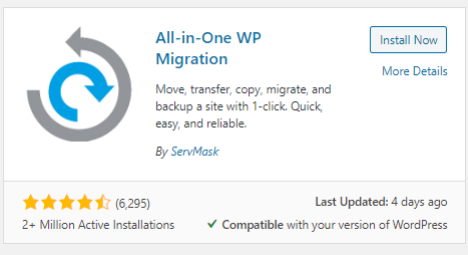
Then it will appear in the side panel, go to it then export:

Click export to then file:
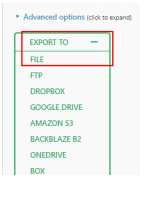
This will open a box with progress, once finished click to download the file:

While this downloads head over to where you have the domain name servers, change the IP address, add the domain to plesk and install wordpress this is outlined in step 3 and step 5 here:
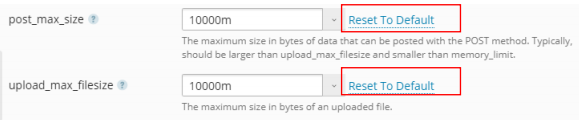
Now in plesk we need to raise the PHP upload limits, go to the domain and php settings:

And raise the upload_max_filesize and post_max_size both to 10000m and click OK

Now we reinstall the plug in onto the new site (This will be different install, so keep watching):
Log into your new wordpress site (domain.com/wp-admin):

Download this zip (We need an older version as there is a bug on the newer version so this will give an older version):
https://www.vishaltalks.com/wp-content/uploads/2019/08/all-in-one-wp-migration-6.7.zip
Go to plugins, add new:
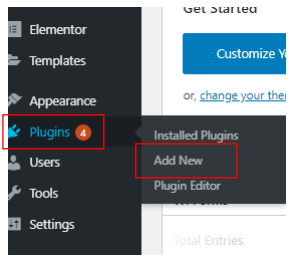
Click on Upload Plugin:
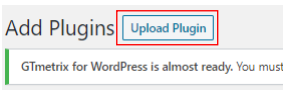
Choose file:

Select the ZIP and then install now:

Activate plugin:
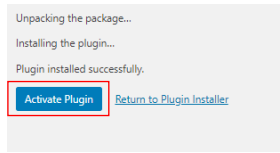
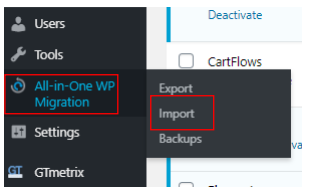
Then it will appear in the side panel, go to it then import:
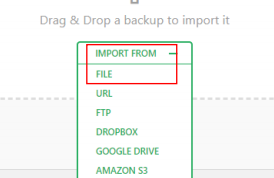
Import from file:
Select the file we previously downloaded:

This will open a new box where it will be importing, give it a bit of time to complete this then click proceed:
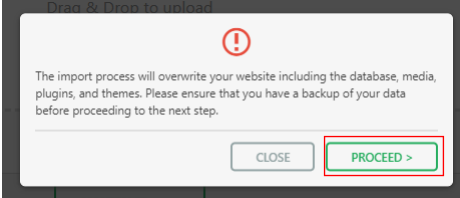
Close this window when you see this:
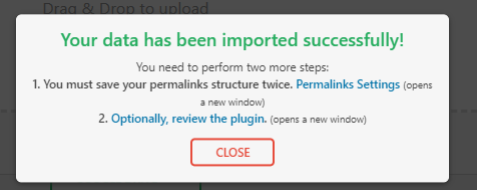
This import is now done, but we need to do one more thing, set the PHP back to the original value so head back to plesk and php settings and select reset to default: