
DMARC and DKIM, Go to plesk Tools and Settings:

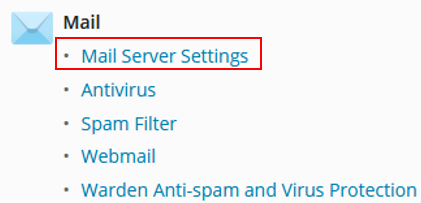
Select Mail Server Settings:
Scroll down and tick all the following box’s then to the bottom and save:

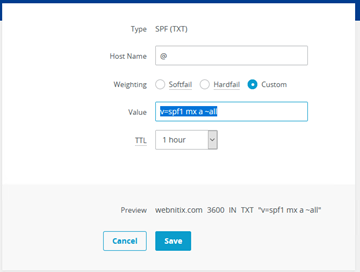
SPF, Go to your domain DNS settings and click add record, select SPF (TXT):

Fill out hostname: “@” and Value: “v=spf1 mx a ~all” click save:
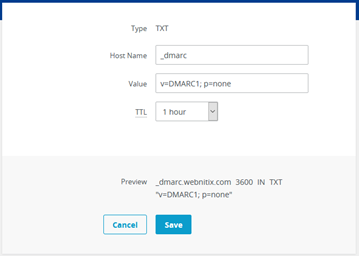
DMARC, Go to your domain DNS settings and click add record, select TXT:

Fill out hostname: “_dmarc” and Value: “v=DMARC1; p=none” click save:
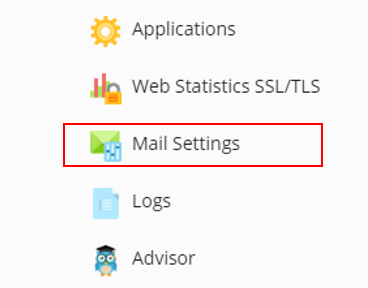
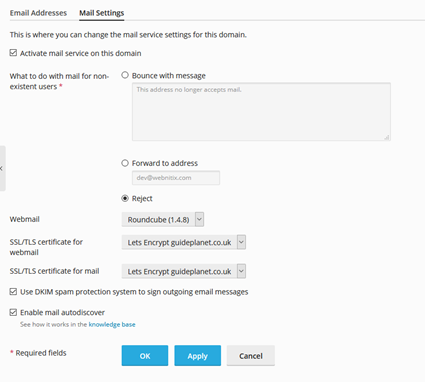
Head back to plesk, go to the domain and select mail settings:
Replicate these settings, making sure “Use DKIM spam protection system to sign outgoing email messages” is ticked and click Ok.
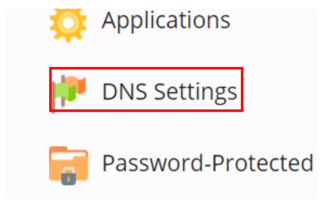
DKIM, click onto DNS settings
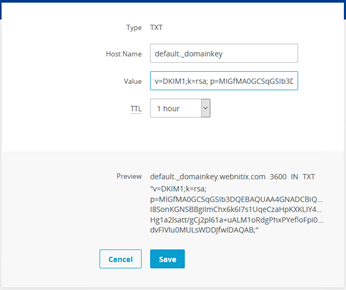
You will see a record called default._domainkey.domain.com, copy the value from here, it should look like this:

Zoomed in:

Copy this long text of code in full.
Mine for example here was:
v=DKIM1; p=MIGfMA0GCSqGSIb3DQEBAQUAA4GNADCBiQKBgQClStY2HAwXjisnAksOnieKbzCHQov87yslstzt4y2pp68dxMpzlvT7w14AsUPz79OpOmqGH/K2orYCtAI5kkrdMNMdr2Wn1OnmCeTKlDN8jZeHXZv4IwR5P3Y4kUirJcWLo4sSpAOdvlFA1GWeMrVmx7ylkpzhfukdMys5GyCNzwIDAQAB;
Now go to the domains DNS settings in your IONOS panel

Go to the domain and select DNS:

DKIM, click add record, select TXT:

Fill out hostname: “default._domainkey” and Value: “v=DKIM1;k=rsa; p=PASTE THE KEY HERE;” click save:
You have now set up DKIM, DMARC and SPF