
Head to your Ionos account and go onto your HiDrive:
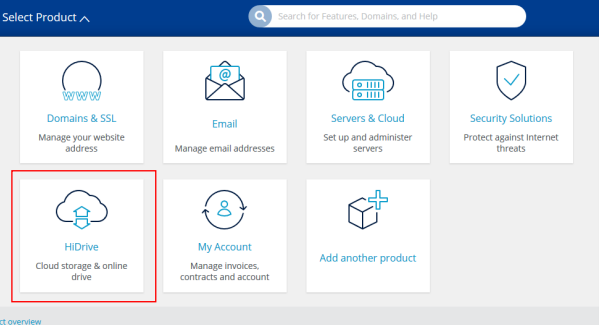
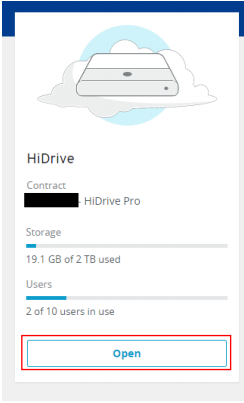
And open your HiDrive:
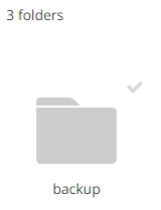
Create a user and then open the user, create a backup folder:
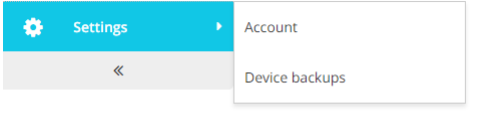
Check FTP is enabled, hover over Settings, then select account:
Scroll down and make sure FTP is ticked:

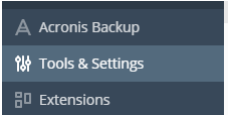
Head over to plesk and click tools and settings:
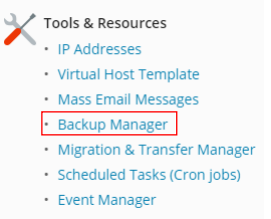
Click on Backup manager, below tools & Resources:
Click on the remote storage settings:

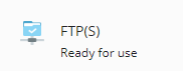
Click on FTP(s):
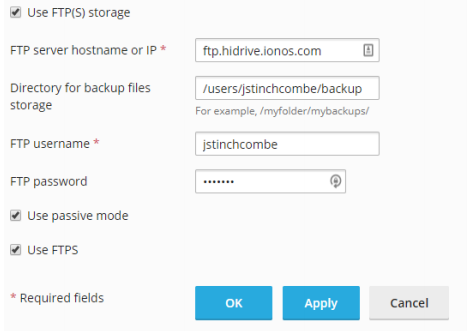
Fill in the options with the following:
Hostname: ftp.hidrive.ionos.com
Directory: /users/yourusername/yourfoldername
Username: HiDrive username
Password: HiDrive Password
And tick both options
Go back to backup manager and select Schedule:

Select what you want to backup and tick either both or FTP(S) and done:

To do an instant backup click go back to backup manager and click backup:

Select what you want to backup and tickeitherboth or FTP(S)and done:

That is now set up to do a backup right now and to automatically do backups.